Add an extra layer of security to your Mailfence app by requiring Face ID or Touch ID to open it. This ensures that even if someone has access to your unlocked iPhone or iPad, they cannot open the Mailfence app without biometric authentication.
Requirements
- iPhone or iPad running iOS 18 or later
- Face ID or Touch ID enabled on your device
- Mailfence mobile app installed
How to enable Face ID / Touch ID for Mailfence
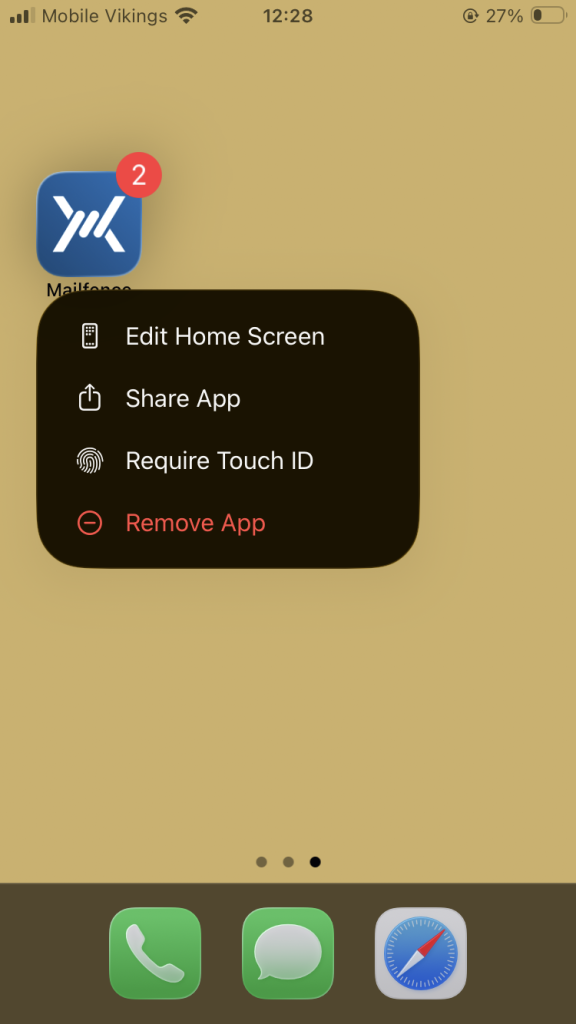
1. On your home screen, long-press the Mailfence app icon.
2. Tap Require Face ID (or Require Touch ID on devices with Touch ID).
3. A prompt will appear with the following options:
- Require Face ID / Touch ID – The app will require biometric authentication to open.
- Hide and Require Face ID / Touch ID – The app will be hidden from your home screen and moved to a hidden folder in your App Library. It will also require biometric authentication.
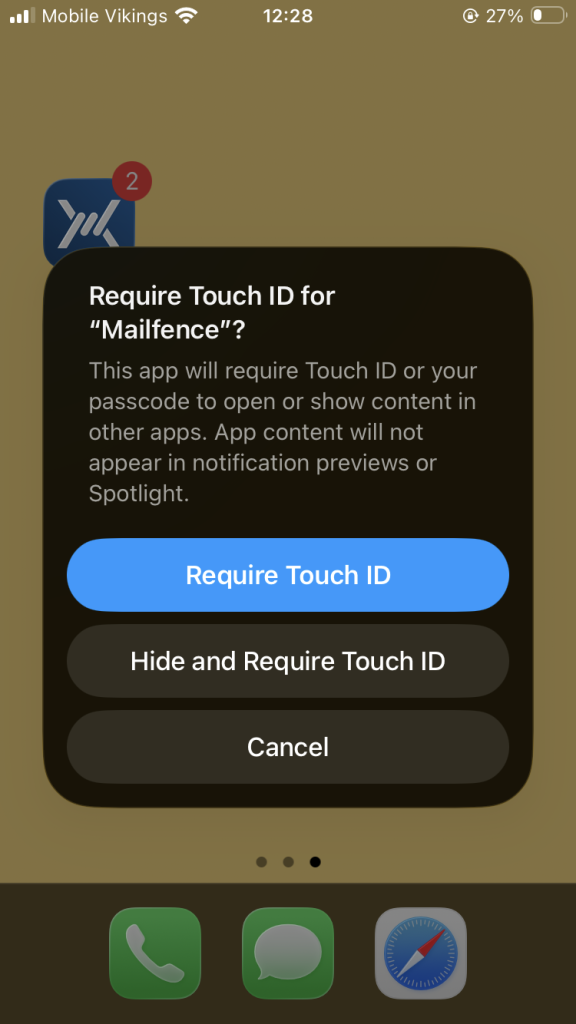
4. Tap your preferred option.
5. Authenticate with Face ID or Touch ID to confirm.
Once enabled, app content will no longer appear in notification previews or Spotlight search results.
How to disable Face ID / Touch ID for Mailfence
- Long-press the Mailfence app icon.
- Tap Don’t Require Face ID (or Don’t Require Touch ID).
- Authenticate to confirm.
Android
On Android devices, biometric app locking depends on your device manufacturer. Some brands (such as Samsung, OnePlus, and Xiaomi) offer built-in app lock features in their settings. Alternatively, you can use a trusted third-party app locker from the Google Play Store.