Mailfence supports email forwarding to external addresses. The first option is automatic forwarding via the global setting. The second option works via filters for fine‑grained control.
1. Automatic forwarding via the global setting
If you want all incoming emails for a mailbox to be automatically sent to another address:
- Log in to Mailfence.
- Go to Settings → Messages → General.
- In the Automatic forwarding field, enter the external email address (e.g., your Outlook or another provider).
- Click Save.
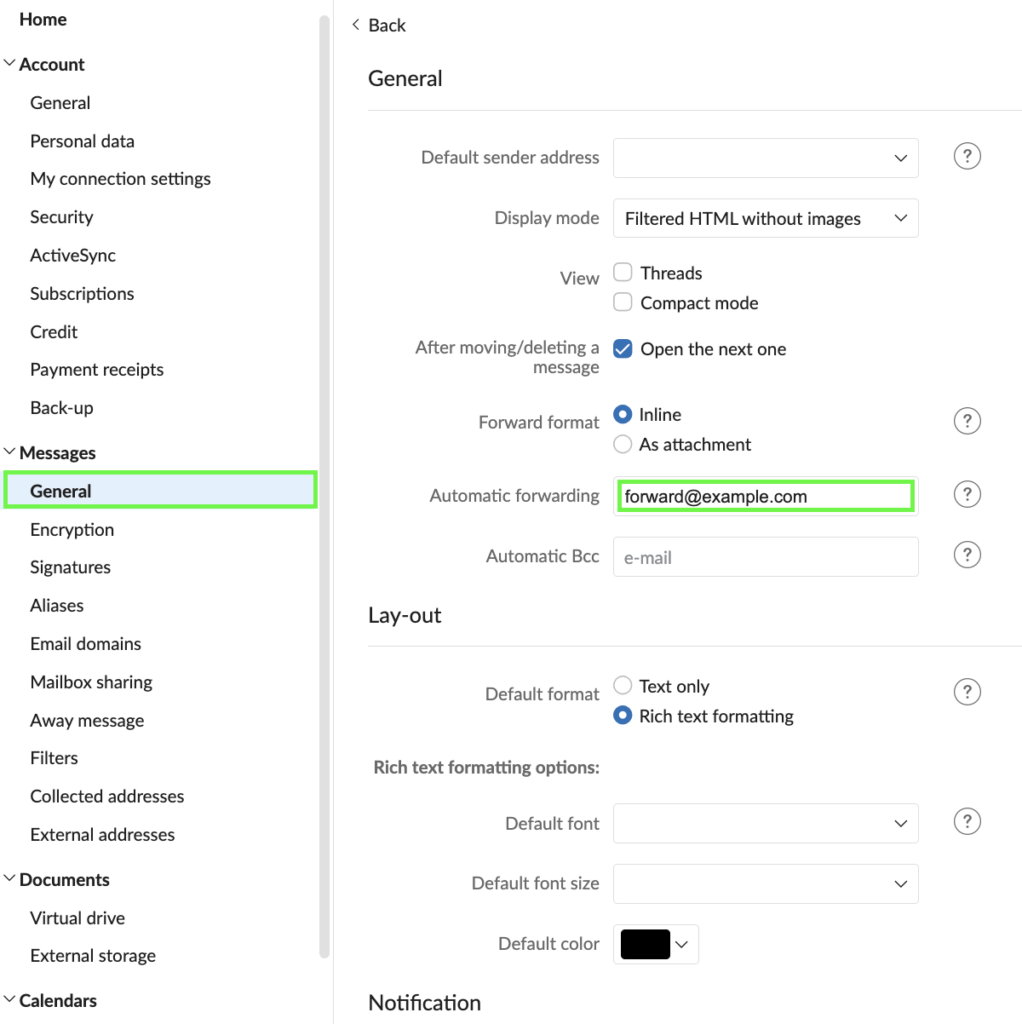
From that point on, every new message received in that mailbox will be automatically forwarded to the destination address. You can change or remove this setting at any time by editing or clearing the Automatic forwarding field.
2. Using forwarding rules (filters) for fine‑grained control
If you want to automatically forward only specific emails (for example, messages to a certain alias or domain), you can use Mailfence’s filters in addition to or instead of the global forwarding option.
2.1. For a single mailbox or alias
- Go to Settings → Filters → Add filter.
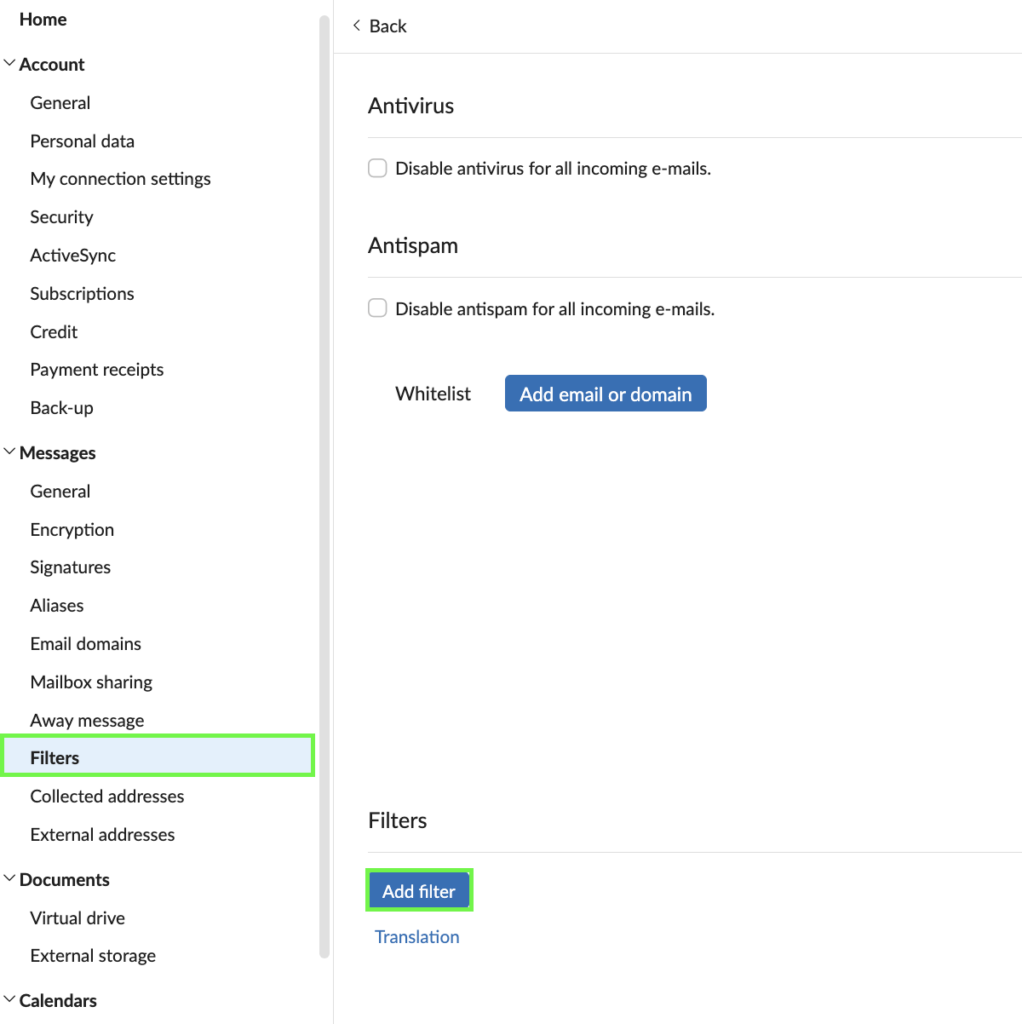
- Create a new filter with:
- Condition:
- e.g.,
Toequalsyour@mailfence.com(or your alias).
- e.g.,
- Action:
Forward a copy toand enter the external email address.
- Condition:
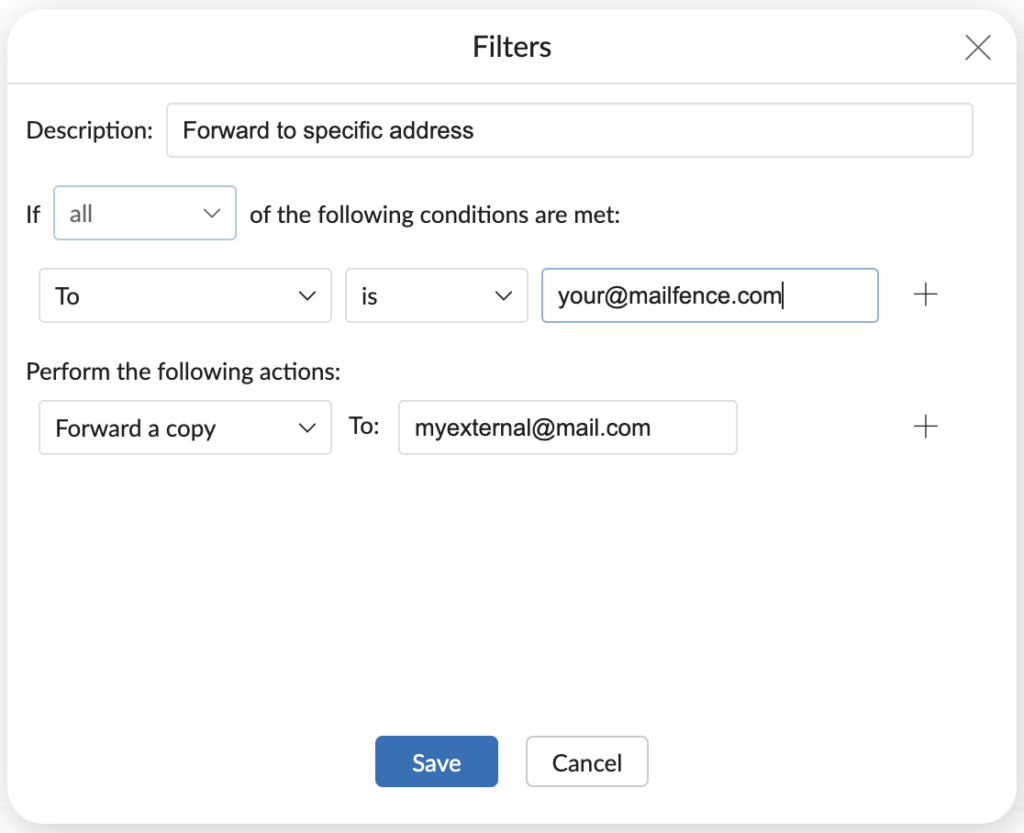
- Save the rule.
Now all new messages matching that condition will be automatically forwarded to the destination while remaining in your Mailfence inbox.
2.2. For custom domains and multiple aliases
If you use a custom domain (e.g., @mydomain.eu):
- Create a rule for:
Toequalsprimary@mydomain.euoralias@mydomain.eu.
- Use Forward a copy to with the forwarding address.
- You can create several rules if you want different forwarding targets depending on the recipient.
This approach is useful if you only want to automatically forward certain aliases or domains, rather than the entire mailbox.
3. Choosing how manually forwarded messages are sent
Mailfence also lets you decide how manually forwarded messages are formatted:
- Go to Settings → Messages → General.
- You can enable the option to forward messages as attachments (.eml files) or leave it disabled.
- If enabled, every message you forward manually will be sent as an attached
.emlfile. - If disabled, manually forwarded messages appear as regular forwarded emails with the original content in the body.
- If enabled, every message you forward manually will be sent as an attached
4. Best practices and security considerations
- Keep a copy in Mailfence: Mailfence keeps a copy of forwarded messages in your inbox by default unless specified otherwise via Filters.
- Use filters for precision: If you don’t want to forward all mail, use Filters instead of the global Automatic forwarding setting.
- Avoid forwarding sensitive data: Forwarding emails to external providers or untrusted addresses creates a copy outside Mailfence’s control; consider your security and compliance requirements before enabling forwarding.