Mailfence lets you send SMS messages to your contacts and receive notifications on your mobile phone, including calendar reminders and alerts about incoming emails.
SMS sending is available in the Mailfence web app only. You can receive Mailfence notifications on your phone, but you cannot receive SMS messages in your Mailfence mailbox.
Provision SMS wallet credits first
To add credits:
- Click on your profile icon
- Add credit
- Add credit to your wallet via PayPal or credit card
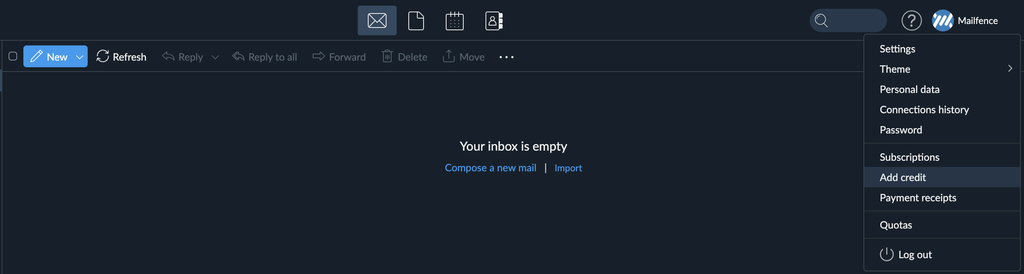
To check your balance, click on your profile icon → Quotas. The graph shows your included and additional SMS credits, how much you have used, and how much remains.
Add your mobile number
To receive SMS notifications, add your mobile number to your personal data in Mailfence.
Use international format:
- Start with the country code, without a leading
+or00. - Follow it with the mobile number, omitting any domestic dialling prefix.
- Do not include spaces.
For example, the international number +43 664 1234567 becomes:
436641234567Use the same format when adding mobile numbers to your contacts. Make sure each number is labelled as a mobile phone number.
How to send an SMS
You can select a recipient from your address book or enter a mobile number directly.
Select a contact from the message composer
1. In Messages, click New to open the message composer.

2. Click « To » to open the address book.

3. Open the E-mail drop-down menu in the upper-right corner and select Phone numbers.
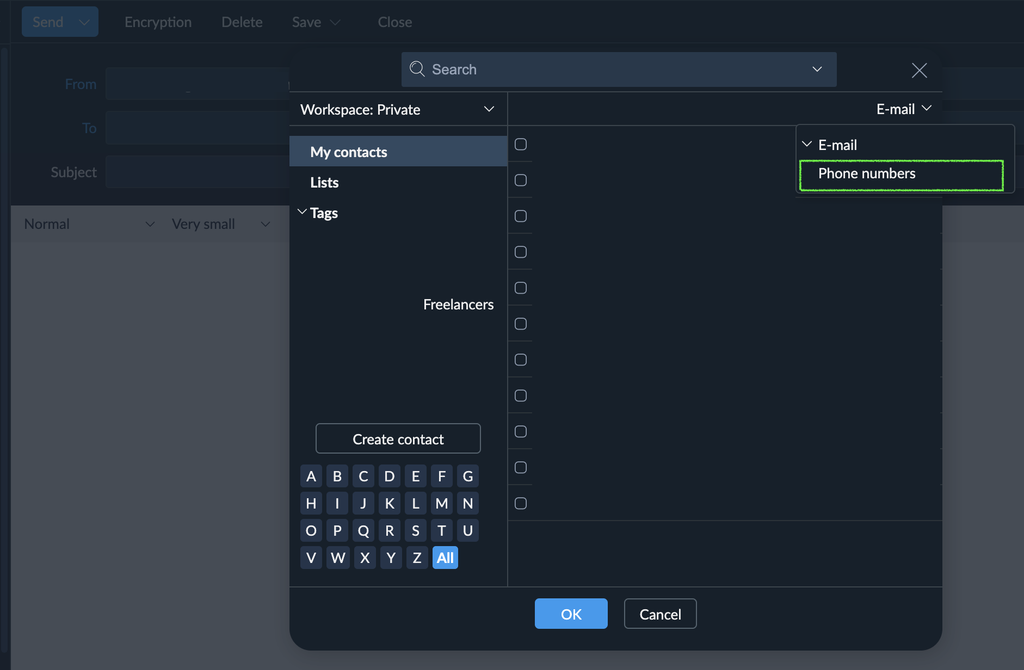
4. Select the contact you want to send an SMS to. To select contacts from another workspace, use the Workspace drop-down menu.
5. Click OK to add the recipient.
6. Write your message, then click Send.
You can select multiple recipients. The sent message appears in your Sent folder.
Enter a mobile number directly
To send an SMS without selecting a contact, enter the recipient’s mobile number followed by @sms in the To field:
436641234567@smsUse the country code without + or 00, followed by the mobile number in international format, with no spaces.
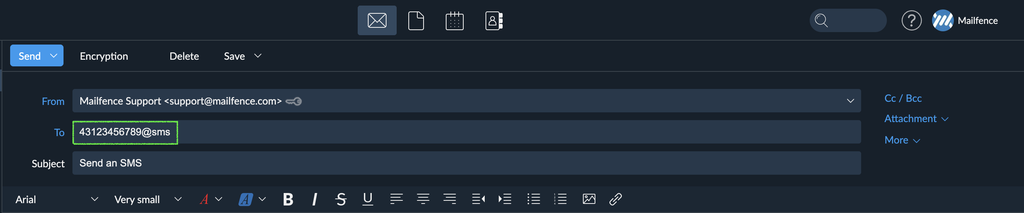
Write your message, then click Send. The message appears in your Sent folder.
Send from Contacts
You can also start an SMS by clicking a contact’s mobile phone number in Contacts.
If the number is not clickable, check that:
- It is entered in international format.
- There are no unnecessary leading zeros before the country code or area code.
- Its number type is set to mobile phone.
Receive SMS calendar reminders and notifications
Mailfence supports the following calendar-related SMS features:
- Event reminders sent to your mobile phone at the time you choose.
- Your calendar sent by SMS at a chosen time.
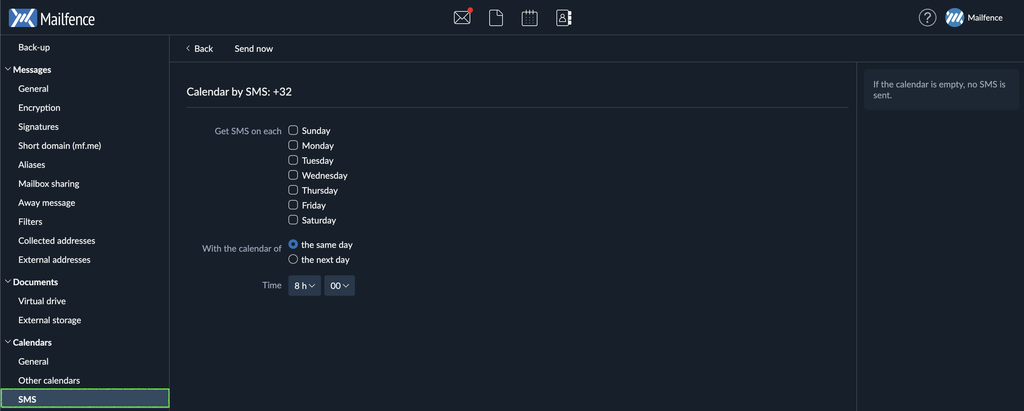
Configure these options in the Calendar tool. Make sure your mobile number is entered correctly in your personal data and that your account has available SMS credit.
Receive SMS alerts for incoming emails
Mailfence can notify you by SMS when a new email arrives.
Other messaging options
Mailfence’s SMS functionality also supports:
- Sending the same message to several recipients using contacts, address books, or lists in the Messages tool.
- Sending the same message through a combination of email and SMS from the Messages tool.
Troubleshooting
SMS functions are not visible
Provision SMS wallet credits first, even if your paid plan includes an SMS quota. Go to Settings → Account → Add Credit.
“Max message parts exceeded” error
If your message exceeds the maximum number of SMS parts allowed, you will receive a notification similar to this:
Dear customer,

SMS transmission error for phone number: +43123456789
 Error: Max message parts exceeded

Regards,
The Support
Shorten your message or split it into separate messages before trying again.
You are not receiving SMS notifications
Check the following:
- Your mobile number is entered correctly in your personal data, using international format.
- Your account has available SMS credit.
- Your phone has enough storage to receive messages.
For more troubleshooting options, please consult https://mailfence.com/en/doc/sms.jsp.